🖼 Background Setup
How you can setup your background behind your examinable objects.
Setup
Setting up background behind your examinable objects is fairly easy.
If you go under the Prefabs folder, you will find a folder named Backgrounds, and under that folder you will find two objects.

First prefab is for Blur Effect background and second is for Solid Background.
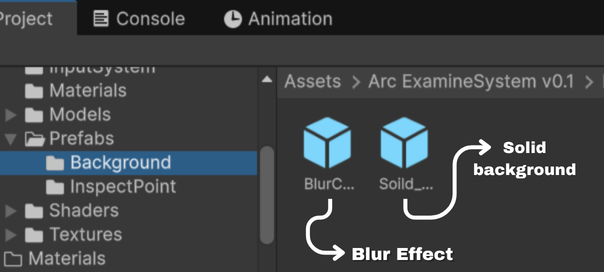
And to use the effect, just drag and drop your prefab under ExamineCameraOverlay.
Blur Effect Setup
First add the BlurCamera under ExamineCameraOverlay as child.
- Please reset the blur camera position and rotation after adding blur camera under ExamineCameraOverlay.
- Ensure that BlurCamera layer is set to Examinable with its child objects.
Now if you go inside the BlurCamera object, you will find a script named Blur Manager.
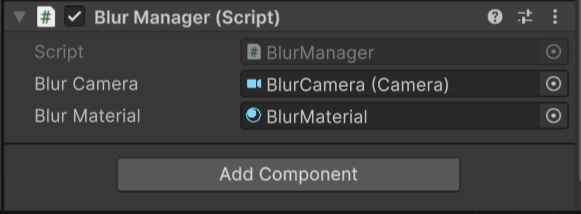
- Blur Camera → Add your Blur Camera reference here.
- Blur Material → Explained below.
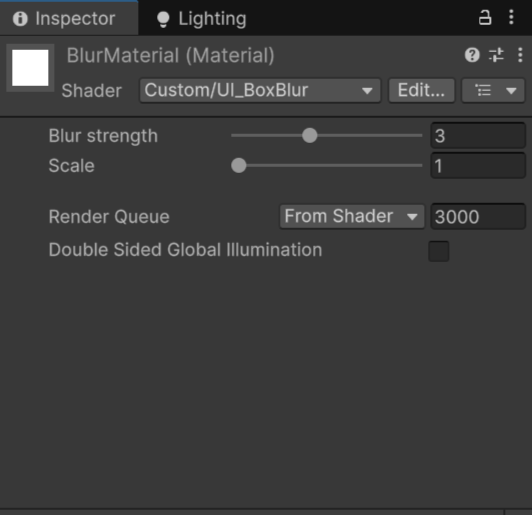
Drag your BlurMaterial into the Blur Material field.
You will find BlurMaterial under the Arc Examine System folder → Shaders folder → UI Blur folder.
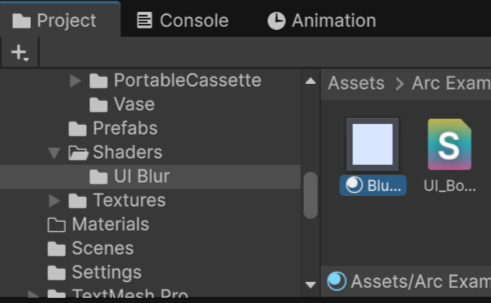
The highlighted Material
Now drag BlurMaterial into the Blur Material field.
And now, under BlurCamera, you will find BlurCanvas.
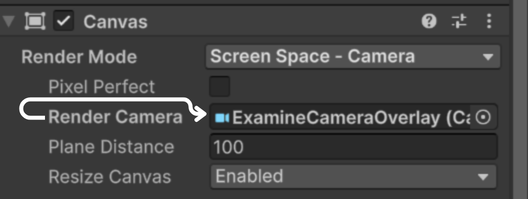
In that BlurCanvas, there is a field named Render Camera, and ensure ExamineCameraOverlay is added in the render camera field.
Blur-Background Object Explained
Under the BlurCanvas you will find an object named Blur-Background. It will display your blur effect.
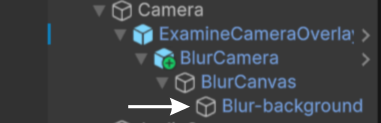
- Blur-Background → It is a simple UI Image component, which will display the blur effect.
⚠ Changing the Blur-Background size is not recommended.
And in Blur-Background component we have to set the Material field to BlurMaterial.
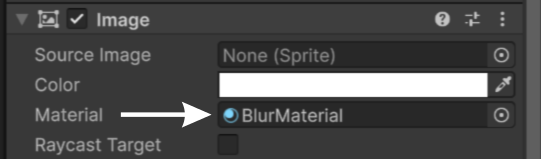
You can adjust the blur effect blur strength and scale from its material.
Result
Solid Background Setup
This is how you can add a solid background behind your examinable objects; it could be useful if you want a different style for your game.
Now to add it, add the Solid_BackgroundCanvas from your Backgrounds folder and add it as child of ExamineCameraOverlay.
And now, same as BlurCanvas, in Solid_BackgroundCanvas there is a field named Render Camera, and ensure ExamineCameraOverlay is added in the render camera field.
Solid-background Object Explained
Under Solid_BackgroundCanvas you will see an object named Solid-background.
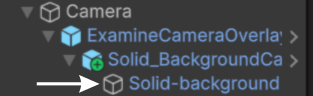
- Solid-background → It is a simple UI Image component, just set it to your background and done.
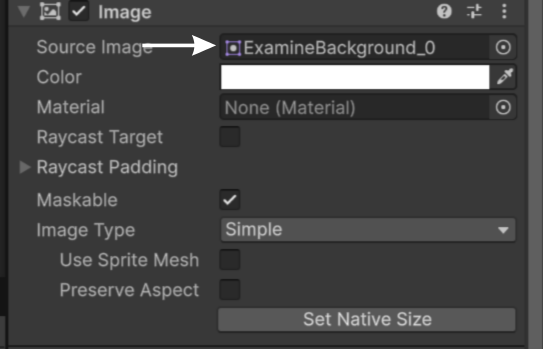 →
→
Default Background
Result
Ensure that Solid_BackgroundCanvas layer is set to Examinable with its child objects.
Disable the Examinable layer under Rendering in Culling Mask from the player camera or from your dedicated examine camera if you are using the blur effect or a solid background.
⚠ If you do not do this, it will impact performance.